

Aesthetic and Speedy Command Line
/ 5 min read
Table of Contents
Developers spend a lot of their time in terminal running trivial commands to complex applications like Claude Code or Codex. Making it an aesthetically pleasing experience is a must!
I have spent countless hours trying to build a smooth, speedy and pleasing terminal experience messing with different terminal emulators, shells, plugin managers and shell prompts. In this article I will cover the details of ones that I use and their configuration.
Terminal Emulator
In past, I have tried out the default Ubuntu Terminal, GPU accelerated Alactritty and Kitty by Kovid Goyal.
Finally, I have landed on something that was developed by a developer I look up to, Mitchell Hashimoto.
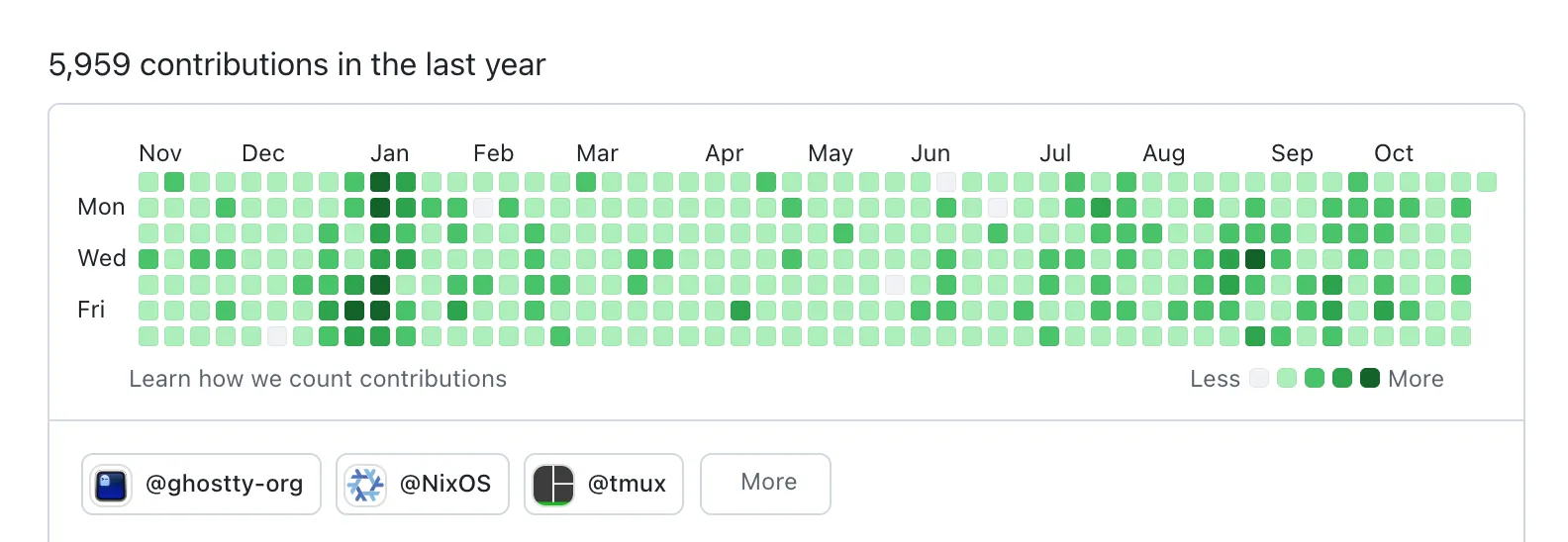
Above is what Mitchell’s Github contribution graph looks like. When a person on sabbatical spends so much time developing and contributing out of shear passion then something amazing was bound to come.
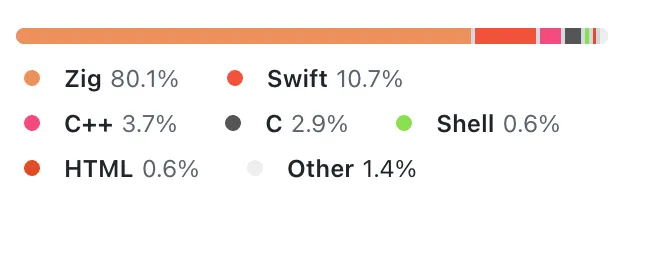
The result of which was a cross platform, fast and feature rich terminal emulator, Ghostty. It aims to be zero config, uses platform native UI and GPU acceleration which makes it super fluid, non-clanky and performant.
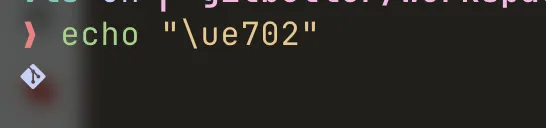
It comes built in with JetBrains Mono Font and has out of the box support for nerd fonts which can render glyphs in terminal.
Terminal Multiplexer
At some stage everyone becomes aware of terminal multiplexers like tmux, zellij, etc. These cli tools allow you to open multiple shell sessions in a single terminal emulator window.
Ghostty comes packaged with support for tabs and horizontal/vertical splits.
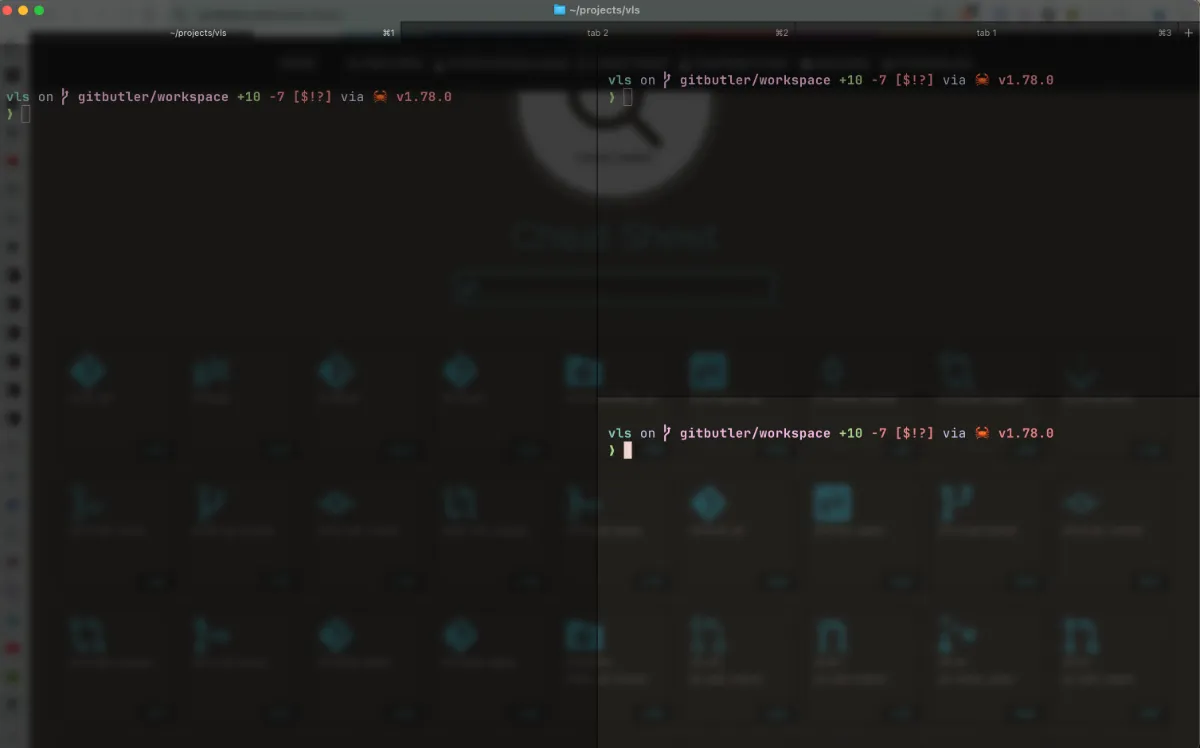
This makes the whole multiplexing experience native to terminal emulator without needing to learn any new commands or shortcuts.
This also helps in preventing shortcut conflicts that happen due to multiple task mapping to same action.
Configuration
Ghostty is supposed to be minimal in config but I have set in some basics that are very niche options.
My theme of choice is Catppucin, a very soothing pastel colored theme.
theme = Catppuccin FrappeNext up is font, I like ‘em large and also it should be a nerd font.
font-size = 16font-family = "JetBrains Mono Nerd"I prefer my cursor to be block style which is more visible and for this we also need to override the shell from choosing the cursor style. Also to attain flow state while working I want the mouse cursor out of the way.
cursor-style = blockshell-integration-features = no-cursormouse-hide-while-typing = trueI theme my background to pitch black (#000000), with some opacity reduction and a very cool blur, which was visible in all the screenshots.
background = #000000background-opacity = 0.65background-blur-radius = 15Shell
While macos comes natively installed with zsh (Z Shell) in ubuntu they are still using bash (Bourne Again Shell).
In terms of functionally both are equally capable for day to day task. The biggest change is zsh is very customisable due to it’s plugin ecosystem and themes.
Aesthetics’s are important!
So the first step that I take on a fresh install is to switch the shell.
sudo dnf install zshchsh -s $(which zsh)chsh command is acronym for “change shell” and the -s for specifying the shell binary to be used.
which command is used to find the location from where the binary is getting loaded.
Plugin Manager
Now that we are done with setting up our emulator and shell of choice we can finally start bringing in some plugins to add more information to our shell.
I use zcomet instead of something like zplug or oh my zsh because it is fast.
Installing zcomet is done by adding following lines in zshrc
if [[ ! -f ${ZDOTDIR:-${HOME}}/.zcomet/bin/zcomet.zsh ]]; then  command git clone https://github.com/agkozak/zcomet.git ${ZDOTDIR:-${HOME}}/.zcomet/binfi
source ${ZDOTDIR:-${HOME}}/.zcomet/bin/zcomet.zsh
Shell Prompt
I was using powerlevel10k a very optimised shell prompt for fast loading. But it isn’t very customisable and isn’t getting maintained so I made peace with using starship.
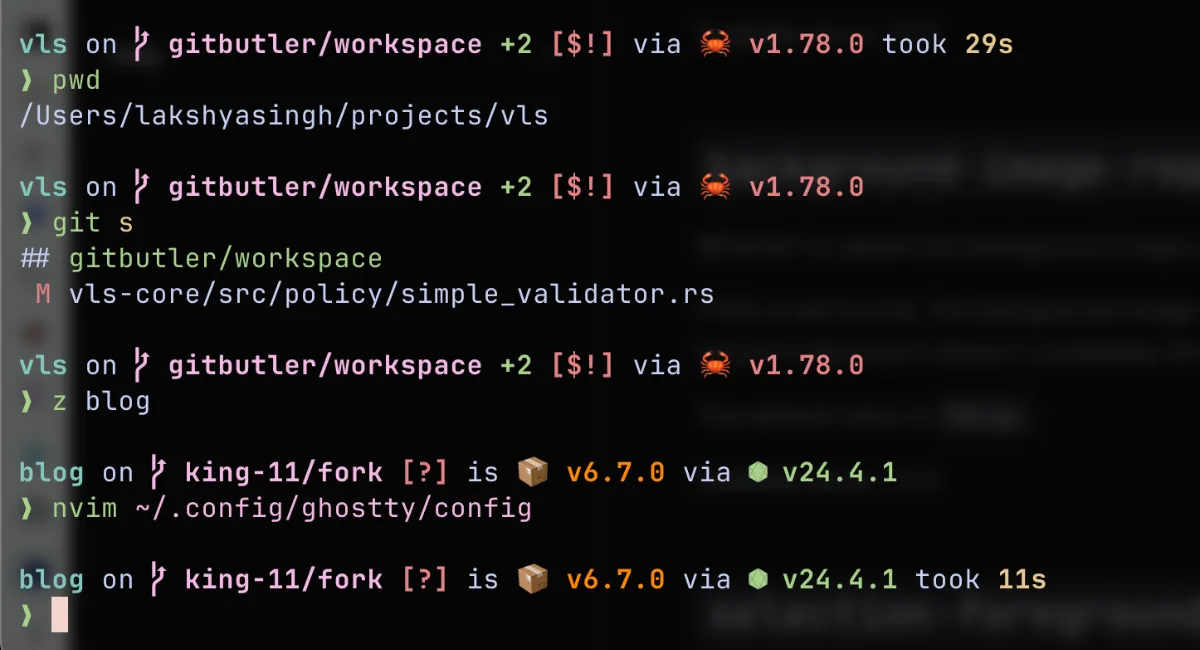
It’s a shell prompt written in rust which is being actively maintained. I had set it up using zinit but for zcomet I have to use it’s native setup.
brew install starshipecho 'eval "$(starship init zsh)"' >> ~/.zshrcI have a pretty lean config for it which just disables output from git status as my directory is mostly dirty and it also slows down the startup.
[git_status]disabled = trueI think that’s all you need to built an aesthetic and pleasing terminal experience. This is just the start though there is plethora of plugins and themes to look around.
While this article was more about eye pleasing, in case you want to know what shell utilities I make use of to fly around and get things done quickly let me know, I might just write another article on it.
That’s all for this article, thanks for reading you can find more of my articles on my blog.
Cover Photo by Kris Atomic.